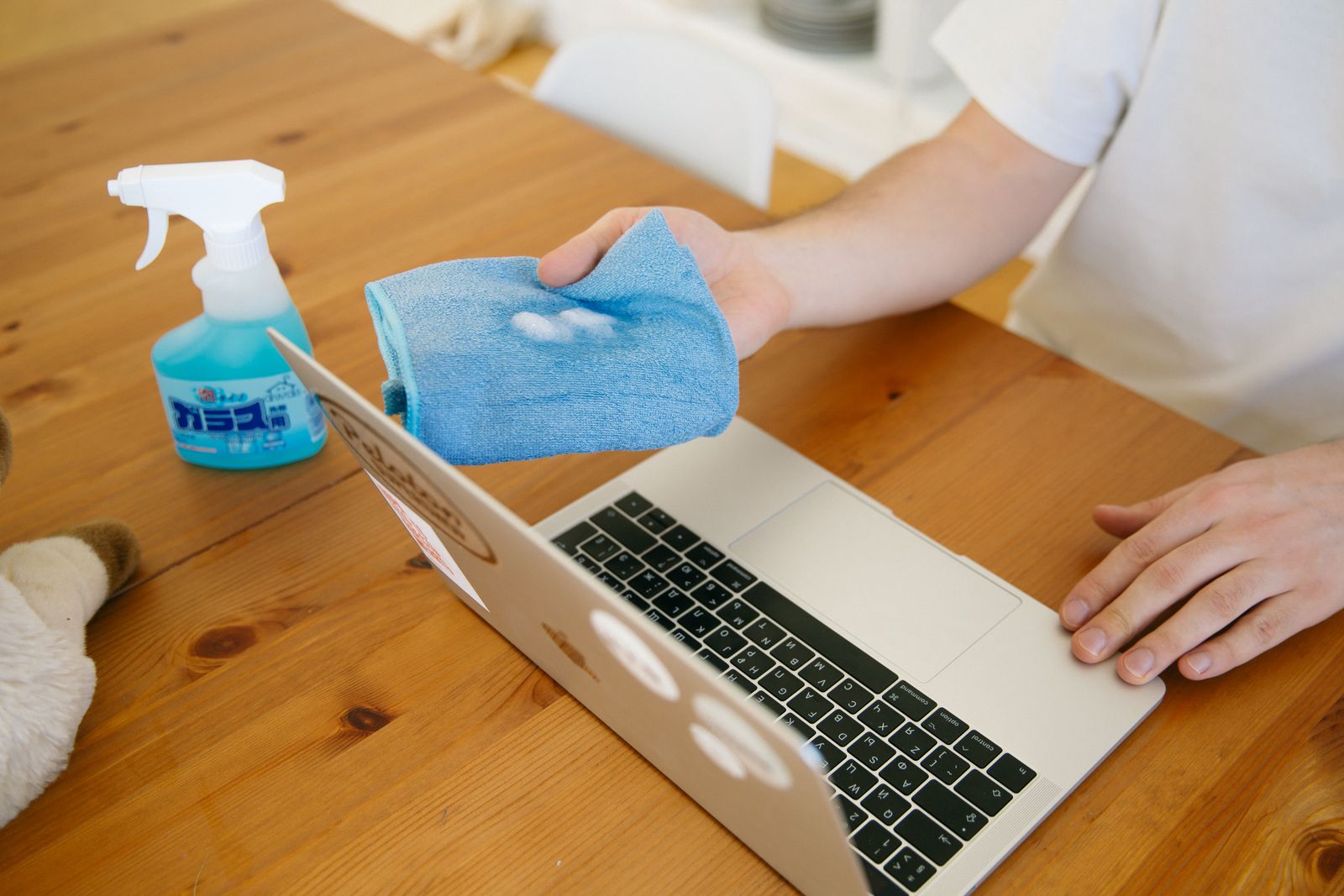
To wipe a laptop before selling it, first make and verify a backup, disconnect removable storage, record any recovery keys you may need, and then use the operating system’s built-in full reset—not an ordinary file deletion. On Windows choose Remove everything and enable Clean data; on a supported Mac use Erase All Content and Settings; on a Chromebook run Powerwash. When the reset finishes, leave the computer at its welcome or setup screen for the buyer.
That sequence is appropriate for most personally owned, modern laptops that were encrypted and working normally. It is not a universal guarantee for corporate records, regulated data, a failed storage device, or a laptop that was never encrypted. Microsoft explicitly says its consumer data-erasure option does not meet government or industry erasure standards, while NIST treats sanitization as a risk-based process tied to the sensitivity of the information.
The instructions below were checked against Microsoft, Apple, Google, NIST, and UK National Cyber Security Centre guidance on October 26, 2026. Menu names can vary by operating-system version. If the laptop belongs to an employer or school, stop and contact its administrator: management enrollment, legal retention duties, and approved disposal procedures take priority over a personal reset.
In this article
- Before you erase: make a backup you can actually restore
- How to wipe a Windows 11 laptop before selling it
- How to erase a Mac before selling it
- How to Powerwash a Chromebook before selling it
- Is a factory reset enough before selling a laptop?
- What a laptop reset does not erase
- Final handover checklist
- Frequently asked questions
Before you erase: make a backup you can actually restore
Start with data, not the reset button. Copy documents, photos, project folders, password-manager exports if your provider recommends one, locally stored email archives, browser bookmarks, software license information, and any files in Desktop, Documents, and Downloads. Cloud sync is not the same as a complete backup: a file may be online-only, excluded, still uploading, or tied to an account you can no longer access.
Verify the copy from a different device or storage location. Open several important documents and photos, confirm that encrypted archives can be unlocked, and check that the newest files are present. If you use an external drive, eject and unplug it before starting the reset so there is no chance of selecting or formatting the wrong disk. Keep the laptop connected to power during the erase and reinstall.
Prepare account recovery before signing out. Confirm access to the email address and phone number used for your Microsoft, Apple, or Google account. On an encrypted Windows PC, Microsoft advises having the BitLocker recovery key available. If you are moving to passkeys, our related Trevioniq passkey guide explains why a second device and recovery method should be ready before the old laptop leaves your possession.

Sources: Microsoft Support — Reset your PC, checked October 26, 2026 ↗ · Related Trevioniq guide — Passkeys vs. passwords and lost-phone recovery ↗
How to wipe a Windows 11 laptop before selling it
In Windows 11, open Settings, choose System, then Recovery, and select Reset PC. Choose Remove everything. Do not choose Keep my files for a sale: that option is meant to preserve personal files while reinstalling Windows. Under the additional settings, turn on Clean data or the equivalent drive-cleaning option. Microsoft recommends this setting when a PC will be donated, recycled, or sold because it makes recovery of removed files harder.
Next choose Cloud download or Local reinstall. Cloud download retrieves a fresh Windows image and is useful when the local installation files may be damaged; Local reinstall uses files already on the machine and avoids a large download. Neither choice replaces the need to select Remove everything and Clean data. Review the confirmation screen carefully, connect the charger, and begin only after the backup and BitLocker recovery information are secure.
The laptop may restart several times. Do not force it off. When Windows reaches the first-run region or language screen, stop there rather than creating a temporary account for the buyer. Microsoft warns that its data-erasure feature is designed for consumers and does not satisfy government or industry sanitization standards. If the machine held employer data, customer records, medical information, unrecoverable cryptocurrency keys, or other high-impact secrets, use the organization’s approved process instead.
Sources: Microsoft Support — Reset your PC, checked October 26, 2026 ↗ · NIST — SP 800-88 Rev. 2, Guidelines for Media Sanitization, September 2025 ↗ · UK National Cyber Security Centre — Secure sanitisation and disposal of storage media ↗
How to erase a Mac before selling it
On a Mac with Apple silicon, or an Intel Mac with the Apple T2 Security Chip running macOS 12 or later, Apple directs sellers to Erase All Content and Settings. Open System Settings, choose General, select Transfer or Reset, and then choose Erase All Content and Settings. Authenticate as an administrator, review what will be removed, and follow Erase Assistant.
Apple says Erase Assistant signs the Mac out of Apple services, turns off Find My and Activation Lock, removes installed apps, erases all user accounts and their data, and erases all volumes—including a Boot Camp volume where present. Those account steps matter as much as deleting files: an Activation Lock left attached to the seller can prevent the buyer from using the Mac.
When the erase is complete, the Mac displays Hello. Leave it there. If Erase All Content and Settings is unavailable, Apple’s sale checklist uses a longer path: back up the Mac, sign out of relevant services, start in macOS Recovery, erase the storage with Disk Utility, reinstall macOS, and quit the Setup Assistant instead of finishing setup for the buyer. Follow Apple’s model-specific page because startup keys and disk layouts differ between Apple-silicon and older Intel Macs.
Sources: Apple Support — Erase your Mac with Erase Assistant, checked October 26, 2026 ↗ · Apple Support — What to do before you sell, give away, trade in, or recycle your Mac ↗
How to Powerwash a Chromebook before selling it
A Chromebook factory reset is called Powerwash. Sign out, press and hold Ctrl + Alt + Shift + R, choose Restart, then select Powerwash and Continue. Once ChromeOS returns to the setup flow, do not sign in again: Google notes that the first Google Account used after the reset becomes the Chromebook’s owner account, which should belong to the buyer.
Powerwash removes local user data, settings, apps, and files in Downloads. It does not delete files stored in Google Drive or on an external drive, so manage those separately if needed. Google’s enterprise documentation explains that ChromeOS protects local data with encryption and that Powerwash performs a cryptographic erase by clearing the relevant keys. It also cautions that some diagnostics, operational information, and off-device cloud or management data can remain.
A work or school Chromebook is a special case. Google says users cannot simply reset such a device as if it were personal; the administrator must wipe or deprovision it. Forced re-enrollment may reconnect the laptop to the organization even after a Powerwash. A buyer should receive proof that the device has been released from management, not just a clean login screen.
Sources: Google Chromebook Help — Reset your Chromebook to factory settings ↗ · Google Chrome Enterprise Help — Powerwash and data erasure on Chromebooks ↗
Is a factory reset enough before selling a laptop?
For an ordinary personal handover, the manufacturer’s full reset on a functioning, encrypted modern laptop is generally the practical baseline. The UK NCSC says that on devices using encryption such as BitLocker or FileVault, a manufacturer reset normally deletes encryption keys and can allow the device to be reused or released with minimal risk. It also says procedures vary and cannot guarantee that every implementation renders all user data unreadable.
Risk changes the answer. NIST defines media sanitization as making access to target data infeasible for a given level of effort and recommends a program based on the information’s sensitivity. A family laptop containing normal personal files is not the same risk as a machine holding trade secrets, regulated records, client identity documents, private keys, or credentials that could move money. A factory reset should not override an employer’s retention or disposal policy.
If the storage device is damaged, inaccessible, unencrypted, unusually old, or cannot complete the vendor reset, do not sell it with the drive installed merely because Windows or macOS no longer boots. Keep the drive, have a qualified service perform and verify sanitization, or use an approved destruction provider where the data’s value warrants it. Avoid improvising with repeated file deletion or random third-party “cleaner” apps; the correct method depends on the storage technology and the assurance required.
Sources: NIST — SP 800-88 Rev. 2, Guidelines for Media Sanitization, September 2025 ↗ · UK National Cyber Security Centre — Secure sanitisation and disposal of storage media ↗
What a laptop reset does not erase
A reset acts on the laptop. It does not delete documents already synchronized to OneDrive, iCloud Drive, or Google Drive; remove backups from another disk; close a marketplace listing; cancel subscriptions; or sign out sessions on other phones and computers. Chromebook guidance explicitly separates local Powerwash from cloud data. Treat cloud cleanup as a different decision, because deleting synchronized files before confirming the backup can remove them everywhere.
It also does not guarantee that every account relationship disappears outside the device. After the reset, review the laptop in your Microsoft, Apple, or Google device list and remove it if it is still associated. Check password-manager trusted devices, work VPN enrollment, software-seat activations, and any service that limits authorized computers. Revoke a session or change a password when there is a reason—especially if the laptop was lost or you cannot confirm the erase—not as a substitute for wiping the machine.
Finally, the reset does not touch SD cards, USB drives, cellular SIMs, or accessories left in the bag. Remove them and inspect every port. If the laptop has a firmware password or organization-level management, clear or transfer it through the documented process. Do not disable security controls on an employer-owned device without authorization.
Sources: Apple Support — What to do before you sell, give away, trade in, or recycle your Mac ↗ · Google Chromebook Help — Reset your Chromebook to factory settings ↗ · Google Chrome Enterprise Help — Powerwash and data erasure on Chromebooks ↗
Final handover checklist
A successful handover has four visible signs: the laptop starts at the initial setup screen; none of your accounts appears; the device is no longer blocked by Activation Lock or organizational management; and the buyer can create the first account. Do not continue through setup simply to demonstrate that the computer works. Instead, let the buyer complete setup while you are present, if the sale is in person.
Before packing it, remove stickers that reveal personal information, clean the screen and keyboard with the manufacturer-approved method, and include only the charger and accessories listed in the sale. Record the serial number and photograph the laptop’s condition for your receipt, but do not publish the full serial number in a public listing. If you promised a particular operating-system version or battery condition, show the buyer where that information can be checked without logging back into your old account.
Keep the sale receipt and the backup until the buyer confirms setup. Then retire the old device from your account dashboards and store or delete the backup according to your own retention needs. The safest workflow is sequential: verify the copy, erase the laptop, verify the first-run screen, transfer ownership, and only then clean up the remaining account and backup records.
Sources: Microsoft Support — Reset your PC, checked October 26, 2026 ↗ · Apple Support — Erase your Mac with Erase Assistant, checked October 26, 2026 ↗ · Apple Support — What to do before you sell, give away, trade in, or recycle your Mac ↗ · Google Chromebook Help — Reset your Chromebook to factory settings ↗
Frequently asked questions
How long does a full reset take? There is no reliable universal time. Drive size and speed, the Clean data option, network speed for a cloud download, and the operating system all matter. Keep the laptop on power and plan enough time to respond if the process reports an error.
Can a buyer recover my files after a factory reset? A correct vendor reset on a working, encrypted modern laptop substantially reduces ordinary recovery risk, but no single answer covers every device and threat. Microsoft specifically limits its claim to consumer use, and NIST requires a sensitivity-based approach for higher assurance.
Should I reinstall the operating system separately? Usually not when the supported reset workflow completes successfully. Windows Reset reinstalls Windows, Erase Assistant prepares a supported Mac for a new owner, and Powerwash returns a Chromebook to setup. Older Macs and failed resets are exceptions: follow the manufacturer’s recovery instructions.
Should I delete my cloud files first? Not as part of wiping the laptop. Confirm your backup and understand synchronization before deleting anything from a cloud service. Local erasure and cloud-data deletion solve different problems.
Sources: Microsoft Support — Reset your PC, checked October 26, 2026 ↗ · Apple Support — Erase your Mac with Erase Assistant, checked October 26, 2026 ↗ · Google Chromebook Help — Reset your Chromebook to factory settings ↗ · NIST — SP 800-88 Rev. 2, Guidelines for Media Sanitization, September 2025 ↗ · UK National Cyber Security Centre — Secure sanitisation and disposal of storage media ↗