Affiliate disclosure: this guide contains a TradingView partner link. Trevioniq may earn a commission on a paid subscription, at no extra cost to you. You can start with the free plan.
To start Paper Trading on TradingView, sign in, open Supercharts, choose Trade, select Paper Trading and connect. You can practise with simulated money without depositing funds into a brokerage account. Check that the connected account actually says Paper Trading before submitting an order.
This guide focuses on the web interface and the first useful practice session: connecting the account, understanding an order, reviewing its result and keeping a record. The goal is to learn the controls and build a repeatable checking process. It is not a trading strategy or a promise that simulated gains will translate into real returns.
TradingView’s documentation was checked on October 25, 2026. The screenshots below come from TradingView’s official Help Center and show its actual interface; their symbols, prices and balances are documentation examples, not live quotes. Our numerical exercise is fictional and is not a report of product testing.
In this article
- 1. Connect the simulated account
- 2. Check currency, account settings and costs
- 3. Understand market, limit and stop orders
- 4. Run one small, clearly defined practice exercise
- 5. Review the result and keep your own journal
- 6. Check the data feed before interpreting the chart
- 7. Keep Paper Trading separate from Bar Replay
- 8. Common questions before your first session
1. Connect the simulated account
Open TradingView, sign in and open a Supercharts chart. Look for Trade in the upper-right corner. Select Paper Trading from the available connections, then Connect. TradingView’s separate connection guide also describes the Trading Panel at the bottom of the chart as a route to the same simulated account.
Read the connection name rather than relying on a familiar chart appearance. A chart can be used for analysis, simulated practice or a broker connection. For this exercise, keep the connection on Paper Trading and leave real brokerage accounts out of the workflow.
Give your first session one small objective: find the order controls and explain what each one does. Write that objective down before changing settings. If you cannot identify the connected account or the instrument you selected, pause there and use the linked instructions rather than pressing Buy or Sell experimentally.
Protect the account you use for practice as you would any other online account. Our guide to passkeys and recovery after losing a phone explains why an account’s recovery process matters as well as its sign-in method.
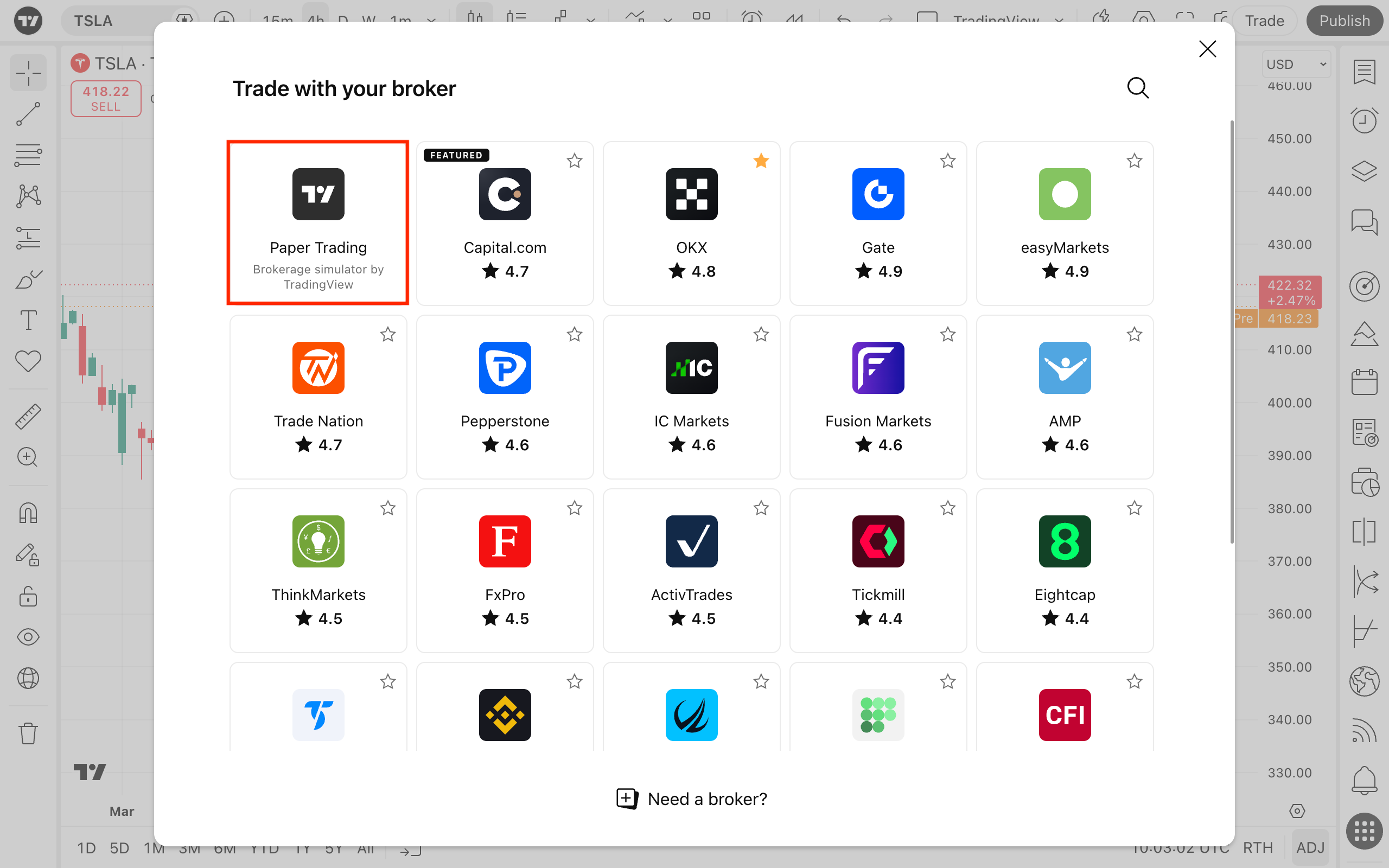
In the official screenshot below, Paper Trading is the highlighted simulator tile. Select that tile for this walkthrough; the other providers shown are separate broker connections. Their presence in the screenshot is not a recommendation to open an account with them.
 View full-size screenshot
 Sources: TradingView — Paper Trading availability and main functionality ↗ · TradingView — Connect or disconnect a Paper Trading account ↗ · Related Trevioniq guide — Passkeys and account recovery ↗
2. Check currency, account settings and costs
TradingView documents USD as the default Paper Trading account currency. You can choose from the available currencies when creating another simulated account, or select a new currency during a reset. Resetting deletes transaction history, active orders and open positions, so preserve anything you need before confirming it.
Open the account settings and inspect the current configuration. Record the balance, currency and any leverage or commission settings shown for the instrument you plan to practise with. Those are part of the experiment: a result without its assumptions is difficult to interpret later.
For non-derivative instruments, TradingView’s commission documentation describes fixed and percentage-based settings under Other. Futures and options have a separate per-contract option, which is inactive by default and can charge both entry and exit. These are settings for simulated transaction costs, not a bill from a broker.
For this introductory exercise, write down your chosen cost assumption explicitly. If you leave a cost at zero, label the result that way. Do not quietly compare a zero-cost simulation with an account that would incur dealing costs. Saving the settings beside your notes makes the comparison inspectable.
Sources: TradingView — Account currency and the effects of resetting ↗ · TradingView — Simulated commissions and account settings ↗ · TradingView — Account Manager, orders, positions and history ↗
3. Understand market, limit and stop orders
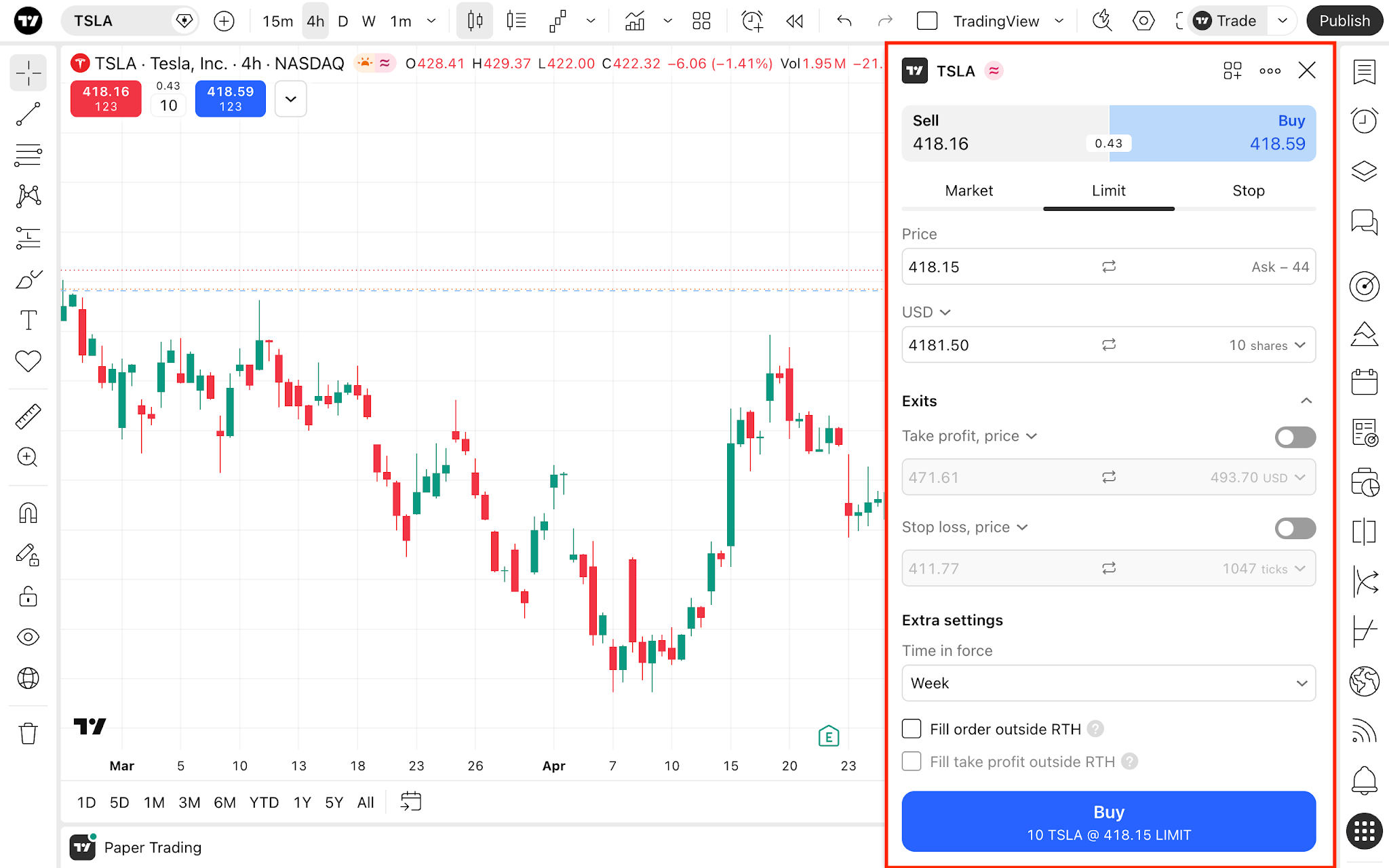
An order is an instruction; it is not necessarily an existing position. A market order seeks execution at the available market price. A limit order adds a price condition: a buy limit is the maximum you will pay, while a sell limit is the minimum you will accept.
A stop-market order waits for its trigger and then becomes a market order. That distinction matters: the trigger is not a promise of an exact execution price. A stop-limit order combines a trigger with a limit. An unfilled conditional order should remain something you check, not something you assume has completed.
Try explaining each order in one sentence before using it. For a limit order, say which price condition must be met. For a stop order, distinguish the trigger from what happens afterward. If you cannot do that, keep practising the concepts before adding more conditions.
Do not learn every asset class at once. Shares, currencies and contracts use different units. For a first interface exercise, choose one supported instrument and identify exactly what the quantity field represents. A neat-looking number is not a substitute for understanding what it measures.
 View full-size screenshot
 Sources: TradingView — Market, limit, stop and stop-limit order types ↗ · TradingView — Order ticket parameters and execution conditions ↗
4. Run one small, clearly defined practice exercise
Use the order ticket to review the instrument, side, quantity, type and any price conditions together. TradingView documents the ticket as the place to enter and modify these details. Before sending anything, check the Paper Trading connection again and read the complete instruction you are about to submit.
Here is a fictional worksheet, not an order recommendation. Suppose five simulated shares fill at 100 currency units each and later close at 101. The gross change is five multiplied by one: a gain of five units. If your chosen example includes one unit of entry cost and one unit of exit cost, the net result is three.
Now change just the closing assumption to 99. The gross result becomes minus five and the same two units of cost make it minus seven. The arithmetic demonstrates why costs and quantity belong in the record. Neither price is a quote for a named security, and these numbers are not suggested position sizes.
After submitting your own simulated order, inspect its state. If it is still pending, review the instruction in Orders; cancel it there if you no longer want it. If it filled, examine the resulting position. Cancelling an unfilled instruction and closing an existing position are different actions.
End this exercise when you can describe what you entered and what happened. One understandable record is more useful for learning the interface than a screen full of trades you cannot reconstruct.
Sources: TradingView — Account Manager, orders, positions and history ↗ · TradingView — Order ticket parameters and execution conditions ↗
5. Review the result and keep your own journal
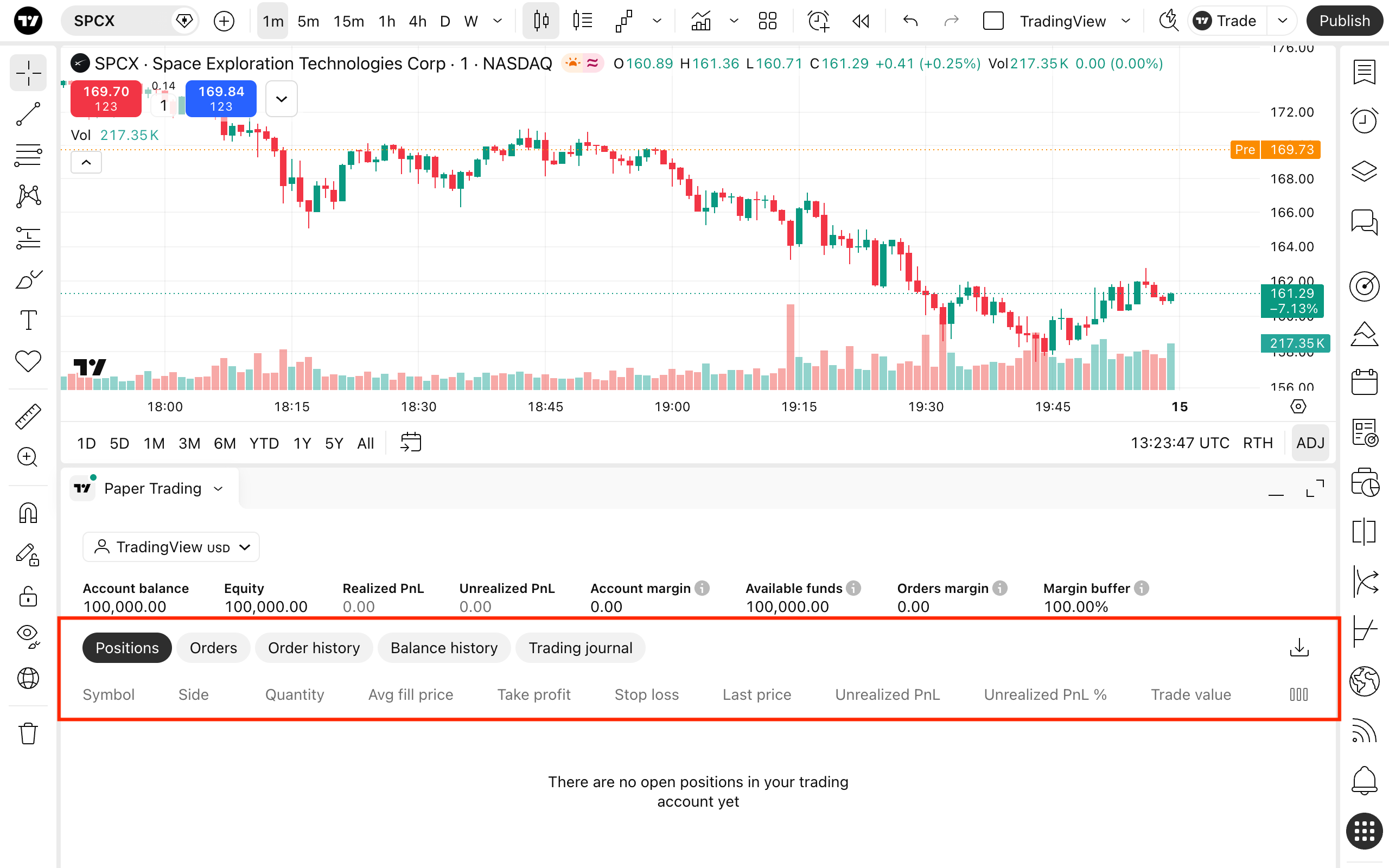
TradingView’s Account Manager separates Positions, Orders, History, Account history and Trading journal. Positions show active exposure; order history includes filled, rejected and cancelled instructions. The platform’s journal records order events and times. Your own notes should explain the reasoning behind those events.
The summary also distinguishes balance, equity, realized profit and loss, and unrealized profit and loss. A result on an open position is different from the result of a closed one. Read the metric’s label before copying a number into your practice record.
Use a short journal with these fields: date and time, instrument and venue, account currency, intended instruction, actual outcome, assumed costs, and one thing to check next. Add the reason for the exercise before it begins. That prevents a convenient explanation written only after you see the outcome.
Review process errors separately from the financial result. A simulated gain can coexist with the wrong quantity or an accidental order type. A simulated loss can still teach you how to cancel a pending order correctly. For the first session, assess whether your record is complete and whether you can repeat the task deliberately.
 View full-size screenshot
 Sources: TradingView — Account Manager, orders, positions and history ↗
6. Check the data feed before interpreting the chart
TradingView says most supported stock and futures exchanges charge for their real-time data, and its paid charting plans do not automatically cover those exchange fees. Check the chart’s market-status information and the exchange shown in Symbol search rather than assuming that every visible price is a primary-exchange live quote.
The provider also explains that default US stock data comes from Cboe and can differ from the primary exchange feed. A charting subscription and an exchange-data entitlement therefore answer different questions. Decide what information an exercise needs before buying an additional service.
Your practice record should state the feed and any delay indicated on the chart. If two screens disagree, compare symbol, venue, session and timestamp before concluding that one application is broken. Keep the observation narrow: a difference between displays needs investigation, not an immediate trading explanation.
A simulated outcome is evidence of what happened in that exercise. Treating it as proof of future live performance would go beyond the exercise. Our Tesla cash-flow analysis illustrates a related reading habit: separate the reported number from the broader story someone wants it to tell.
Sources: TradingView — Exchange data and paid plan limitations ↗ · Related Trevioniq reporting — Tesla cash flow and interpretation ↗
7. Keep Paper Trading separate from Bar Replay
TradingView describes Replay Trading on historical bars as a separate mode from Paper Trading. You select a historical starting point and practise within that replay session. Its documentation says the session’s trades and overall result are not saved automatically; it also describes exporting selected reports for your own records.
Choose the mode according to the learning question. If you want to practise the current interface around an evolving chart, this guide’s Paper Trading workflow is the relevant starting point. If you want to examine a chosen historical sequence, read the Replay instructions and check availability for your account.
Name the mode in your journal. Do not combine results from different environments into one unexplained score. Preserve the context needed to reconstruct the session, including the date range for a replay and any cost assumptions you changed.
8. Common questions before your first session
Do I need a paid plan or a deposit? You can start with a free TradingView account and use Paper Trading without a real-money deposit. Identify a specific limitation in your workflow before upgrading; a paid plan is not required to follow this exercise.
Can I withdraw the simulated balance? No. The balance belongs to the practice environment described here. It is not deposited cash or a withdrawable return. A successful practice session should be judged by what you learned and recorded.
How do I disconnect? Open the Trading Panel, use its trading menu and choose Log out Paper Trading or the brokers list, as described in TradingView’s connection guide. Before returning to any order controls later, verify which connection is active.
Why not just reset after an error? You can start afresh, but a reset removes history, active orders and open positions. Record the error first. A preserved explanation of what went wrong is often the most useful output of a beginner’s practice session.
Sources: TradingView — Paper Trading availability and main functionality ↗ · TradingView — Connect or disconnect a Paper Trading account ↗ · TradingView — Account currency and the effects of resetting ↗
For information and education. This article does not provide a personal investment recommendation.